How to Reset a Router Password – Step-by-Step Factory Reset Guide
Losing access to your router’s admin panel can leave you stranded without control over your network settings. Whether you’ve forgotten the password or inherited a used device with unknown credentials, resetting the router to its factory defaults is often the fastest path back to control. This process works across all major brands including Netgear, TP-Link, Linksys, and Asus, though specific steps and default values differ slightly between models.
Understanding the distinction between your Wi-Fi password and the admin login password is critical before proceeding. Both are reset when you factory reset the device, but they serve different purposes and are managed through separate settings. The steps below cover every common reset method, from hardware buttons to web interfaces, along with guidance on what to expect afterward.
Factory resetting a router restores its admin login credentials to defaults—typically “admin” for both username and password—while erasing all custom settings including Wi-Fi passwords. This requires reconnection via default IP addresses like 192.168.1.1 or 192.168.0.1 for reconfiguration. The process varies slightly depending on your hardware and whether you still have access to the admin panel.
Several reset methods exist depending on your situation and available access.
Physical reset buttons represent the most universal approach, using the reset pinhole located on the back or bottom of the device. This method works regardless of whether you know the current password. Web interface resets require that you still have admin access and involve navigating through settings menus to initiate a factory restore. Mobile applications offered by manufacturers like TP-Link and Asus provide a modern alternative for those who prefer smartphone-based management. For particularly stubborn situations, the 30-30-30 method involves holding the reset button for 30 seconds, cycling power, then holding again for 30 seconds—a technique especially useful on older hardware.
Before beginning any reset procedure, a few preparatory steps can save considerable frustration.
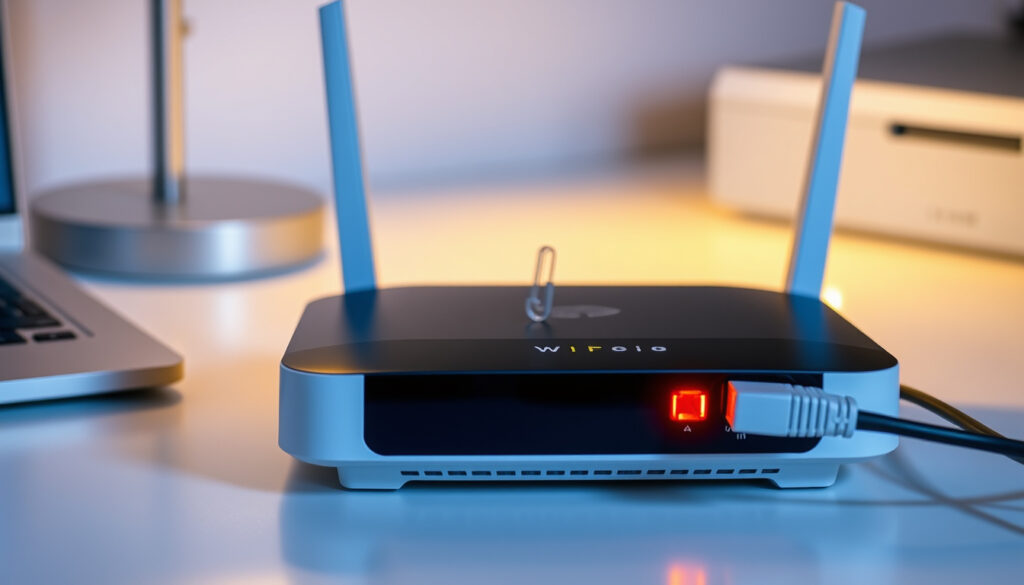
Always document your router’s model number and current firmware version before resetting, as settings and procedures vary by device. Back up existing configuration when possible to avoid reconfiguring everything from scratch. The reset button is often recessed and requires a paperclip or similar narrow tool to press. Avoid power cycling during a reset, as this can damage firmware—keep the router plugged in throughout the entire process. After reset, both Wi-Fi and admin passwords return to factory defaults printed on the device label, so these credentials will change. Some newer routers require an initial setup password set during first boot that differs from the traditional “admin” default. If you’re unsure of your internet settings, contact your ISP before proceeding, as you may need to reconfigure connection parameters afterward.
Most routers ship with default credentials printed on a label attached to the bottom or back of the device. These defaults are consistent across many brands, though some models use custom passwords set during initial setup. Understanding what defaults apply to your specific model helps determine whether a reset is truly necessary.
Router manufacturers assign default gateway IPs during production. The two most common addresses are 192.168.1.1 used by Netgear, Asus, and many Linksys and TP-Link models, and 192.168.0.1 used by other TP-Link variants. Some brands also provide web-based login URLs such as routerlogin.net for Netgear or tplinkwifi.net for TP-Link devices. If the IP address printed on your device differs from these common defaults, use the one on the label. Entering the correct address into your browser’s address bar is the first step toward reaching the login page, whether you’re resetting credentials or simply accessing settings.
Wi-Fi passwords connect devices to your network and are separate from the admin login password that controls router settings. Both reset to factory defaults when you perform a full factory reset, but they are configured independently under different sections of the admin panel. This distinction matters when troubleshooting connectivity or security issues.
The Wi-Fi password (SSID) and the admin password serve different purposes. Your Wi-Fi password connects devices like phones and laptops to the internet, while the admin password grants access to router configuration settings. Both reset to factory defaults during a full reset, requiring reconnection of all devices afterward.
Accessing the admin panel requires connecting to the router either through a wired Ethernet connection or via Wi-Fi. Once connected, open your web browser and enter the default IP address or brand-specific URL. If you’re resetting because you cannot access the panel, the physical reset button becomes necessary.
When you cannot recall the admin password and cannot access the panel, the physical reset button is your primary option. Locate the small pinhole button on the back or bottom of the router—it’s often recessed to prevent accidental activation. Use an unfolded paperclip or similar tool to press and hold this button. Hold the button for 10 to 15 seconds until the LEDs flash or the router restarts automatically. TP-Link devices typically require around 10 seconds, while Linksys, Netgear, and Asus models may need between 5 and 15 seconds. After releasing, wait 1 to 2 minutes for the router to complete its reboot cycle before attempting to log in.
If you still have admin access, several brands allow factory reset through their web dashboards. For TP-Link routers, navigate to Advanced > System/Tools > Backup & Restore > Factory Restore. Netgear users can find this under Advanced > Administration > Backup Settings > Erase/Revert. Asus provides access through Advanced Settings > Administration > Restore > Restore. Linksys typically recommends physical reset rather than software-based options. The brand’s support resources indicate that web interface reset methods are not consistently available across all Linksys models. Always check your specific model’s documentation for the most reliable approach.
A factory reset erases all customizations including internet connection settings, Wi-Fi network names and passwords, port forwarding rules, parental controls, and firmware customizations. The router returns to the state it was in when first purchased, with default credentials printed on the device label.
After the router finishes rebooting, reconnect using the default Wi-Fi network name and password found on the device sticker. Alternatively, connect a computer directly via Ethernet cable for more stable access during configuration. Open your browser and enter the default IP address to reach the login page. Log in using “admin” for both username and password—this works for most TP-Link, Linksys, and Asus models, while Netgear often uses “password” as the default admin password. Once inside, you should immediately change these defaults to secure values.
Setting a new admin password is the first priority after logging in. Choose something strong and unique, then record it somewhere secure. Next, restore your Wi-Fi network name and password to their previous values if you documented them before the reset, or set new values if you prefer. Your internet service provider settings may need reconfiguration depending on your connection type. Contact your ISP if you’re unsure of these values. Finally, check for firmware updates through the admin panel—manufacturers release security patches regularly, and installing updates protects your network from known vulnerabilities.
After reconfiguring your router, consider enabling WPA3 encryption if your device supports it, setting up a guest network for visitors, and exporting your configuration to a file for safekeeping. Regular firmware updates and strong unique passwords for both Wi-Fi and admin access form the foundation of solid router security.
Following the correct sequence ensures a successful reset without complications. Each step builds on the previous one, and skipping steps can result in an incomplete reset or temporary firmware issues.
Locate the reset button on the back or bottom of your router—it’s usually a small pinhole labeled “Reset” or marked with a circular arrow icon. Power on the router and wait for it to fully boot, confirming all indicator lights are stable. Press and hold the reset button for 10 to 15 seconds using a paperclip or pin until the LEDs flash or the router restarts. Release the button and allow 1 to 2 minutes for the complete reboot cycle to finish. Connect to the router using the default Wi-Fi credentials printed on the device label or via Ethernet cable. Log in at the default IP address using “admin” for both username and password fields. Change all passwords immediately and reconfigure your network settings from scratch.
Based on manufacturer documentation and technical support resources, certain aspects of router password resets are well established. Other details vary by model and firmware version, introducing some uncertainty for users following generic guides.
The reset process restores known settings and credentials while acknowledging areas where individual devices may differ.
Factory reset restores credentials to “admin/admin” on most models, though exact defaults may differ on niche or regional variants. The reset button method works universally across all brands, though button location and hold duration varies by model between 5-15 seconds. Reset erases all custom settings including Wi-Fi passwords, though some models retain partial settings or firmware modifications. Common default IPs are 192.168.1.1 and 192.168.0.1, though custom firmware or ISP-provided routers may use different addresses. Post-reset firmware updates are recommended for security, though update availability and process differs by manufacturer. No password recovery option exists without reset, though some newer models offer recovery via linked accounts or apps.
Router password resets serve several practical purposes beyond simply regaining access to forgotten credentials. Security professionals often recommend resets as a first step when a router shows signs of compromise, unauthorized access, or unexplained behavior. The factory reset process provides a clean slate by removing any malicious configurations or unauthorized user accounts that may have been added.
Resets are also necessary when purchasing used networking equipment. Previous owners may have changed default credentials or configured custom settings without documenting them. A factory reset ensures you start with a known state rather than inheriting potentially insecure configurations. Beyond security concerns, some users reset their routers to resolve persistent connectivity issues that cannot be fixed through normal troubleshooting. Corrupted configuration files, failed firmware updates, and unresponsive admin panels often respond to a full reset when all other solutions have been exhausted.
Technical documentation from router manufacturers provides specific guidance for different brands. TP-Link recommends holding the reset button for approximately 10 seconds until the SYS LED flashes rapidly, at which point the device automatically reboots with factory default settings restored. For ASUS models, holding the WPS button for 5 seconds provides an alternative reset method when no reset tool is available. For network administration tools and related guides, see the Microsoft 365 Admin Center – Complete Guide to Access and Features.
Resetting a router password to factory defaults restores admin credentials to their original state while clearing all custom settings. The process requires knowing your router model, locating the reset button or accessing the web interface, and following the correct hold duration before rebooting. Default credentials typically include “admin” for both username and password with IPs of either 192.168.1.1 or 192.168.0.1, though these vary by manufacturer.
After resetting, immediately set new secure passwords, restore Wi-Fi settings, and update firmware to protect your network. Document your configurations going forward and consider exporting settings files for future reference.
The model number is printed on a label attached to the bottom or back of the router. It is also displayed in the admin panel’s status or system information section.
The Wi-Fi password connects devices to your network for internet access, while the admin password grants access to the router’s configuration settings. Both are separate and independent.
Netgear routers typically require the physical reset button for a full factory reset. If you can still access the admin panel, you may initiate a reset through Advanced > Administration > Backup Settings > Erase.
Most routers require 1 to 2 minutes to complete their reboot cycle after a factory reset. During this time, all indicator lights may go dark or flash as the device initializes.
Resetting erases all ISP settings stored on the router. You may need to re-enter your internet connection details after the reset, and your ISP may need to be contacted for assistance.
Factory resetting is safe and often the recommended troubleshooting step for forgotten passwords or security concerns. Just ensure you document your current settings beforehand and plan time for reconfiguration afterward.
Ensure the router is powered on during the reset, try holding the button for the full 15 seconds, and confirm you’re using a narrow enough tool to reach the switch inside the pinhole. If all else fails, check your model’s support documentation or contact the manufacturer.
More related posts
 The Testament of Ann Lee: True Story, Cast, Release Date
 Mickey Hargitay: Biography, Career, and Fatherhood
 Adams Funeral Home Barrie – Location Services Contacts
 Kraft Peanut Butter Cookie Recipe – Easy 3-Ingredient Guide
 That 70s Show Cast – Actors Characters and Where They Are Now
 Pierre Poilievre By-Election: Results, Polls and Riding Details
 Sacramento Kings vs Dallas Mavericks Match Player Stats – Box Score, Achiuwa 29, Marshall 36
 Kat Graham: Ethnicity, Career, and Personal Life Facts
